Distribution & Warehousing Overview How it works Apps for your center

Distribution & warehousing

Retail software for your warehouse and your trade counter

Receive, pick and ship from your warehouse with a handheld scanner, and sell at your trade counter on account, all on the same stock and the same books as your stores, beside the ERP you already run.

Who it is for

One format, two kinds of business

The warehouse and the counter run on the same stock, whether you sell to trade customers or supply your own stores.

A distributor with a trade counter

Trade customers order by phone, through a sales rep or on the web, and also walk in. They buy on account, at their own prices, by the each, the case or the pallet.

A retail chain’s own distribution center

One warehouse receives from your suppliers and sends stock on to your stores, on the same books the stores use.

How a distributor works

Receive, pick, ship and sell from one stock

The everyday work of a warehouse and its trade counter, in the Handheld, at the one till and in the back office.

Goods in

Receive on the scanner, with lots and serial numbers

Scan each item against the purchase order. Tracked items take their serial or batch numbers as they come off the pallet, and the receipt posts to the same stock your stores use.

Pick, pack and deliver

From the pick list to the delivery note

The picker scans each item for an order, packs the cartons with their weights and posts the delivery note, all on the Handheld. One Pick List for each delivery address.

The trade counter

Sell on account at the till

A business customer buys on account within a credit limit, at their own price list, and the counter asks for the purchase order number. A walk-in customer pays at the counter.

Each, case and pallet

The same item in every pack size

Give an item its units and a barcode for each. A case sold at the counter takes the right number of units off stock.

Daily operations

Distribution software built for the whole day

Orders, credit, shipments and collections in iVendNext Desk, beside the warehouse and the counter.

Goods in and where stock sits

  • Receive against purchase orders, with lots and serial numbers.

  • Write a quality inspection and a landed cost voucher in Desk.

  • Set where stock received in Desk goes with a Putaway Rule, and note each item’s bin.

Orders, credit and prices

  • Turn a phone or rep quotation into a sales order; paid web orders come in from your web store.

  • Set a credit limit on a customer, a group or the company.

  • Give each customer or group a price list of its own.

Shipments and delivery trips

  • Write a Shipment for a delivery, with the carrier and the tracking number typed in.

  • Group a vehicle’s deliveries in a Delivery Trip.

  • Assign a picker from a sales order in Desk with Pick route.

Invoices, statements and collections

  • Invoice on terms such as Net 30, or 2/10 Net 30.

  • Send each customer a statement of accounts, and dunning for overdue invoices.

  • Read the receivables aging, and import your bank’s statement to match payments.

Transfers and counts

  • Move stock between warehouses on the Handheld.

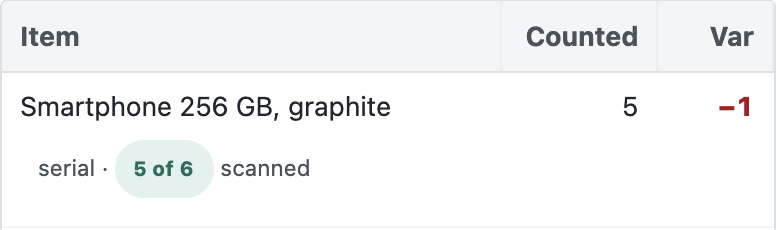
  • Count a warehouse on the Handheld and post the difference.

  • Send goods back to a supplier from the scanner.

The Handheld's stock count: an item with the number counted, the difference, and serial numbers scanned of the total

A count on the Handheld: counted, the difference and the serials scanned.

Reorder

  • Set a reorder level and quantity on each item for each warehouse.

  • Once a day, items at their level are added to a material request.

  • Send it to your buyer to turn into a purchase order.

Apps for your distribution center

Free apps from the App library

Each app is free, installs on its own and does one job. Take the ones your center needs. Your iVendNext partner, or your own developers, can copy any of them and build on it.

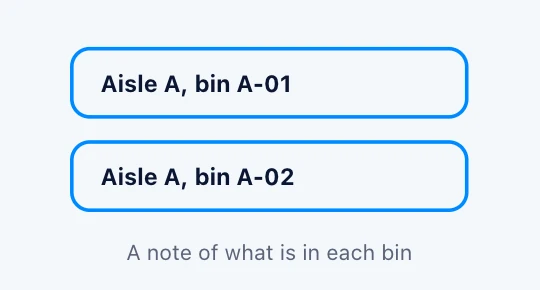
Drawing: aisle A with bins A-01 and A-02, each with a note of what is in it

Bin locations

Write down the aisle and bin of every item, and let the cashier ask the till where it sits.

Stock managers, cashiers

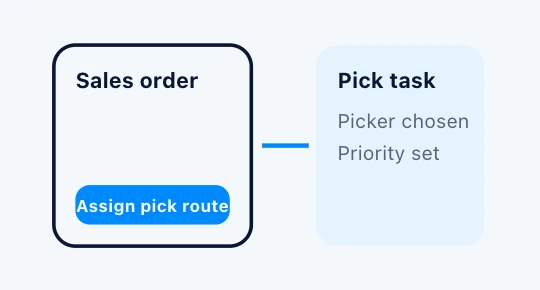
Drawing: a sales order with an Assign pick route button, and a pick task for a chosen picker

Pick route

A button on a sales order in Desk that gives a picker a pick task, listed under the order.

Stock users, stock managers

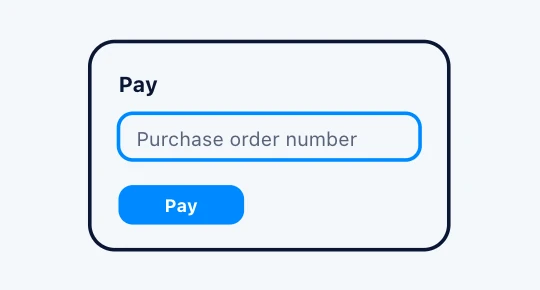
Drawing: the till at Pay, asking for the purchase order number before the sale can finish

Required sale details

Ask an account customer for the details a sale needs, such as a purchase order number, before Pay will finish it.

Retail managers, cashiers

Works with your ERP

Your ERP keeps the books. iVendNext runs the warehouse and the counter.
Keep the ERP you already use for finance and master data. iVendNext sits beside it and runs the scanner, the stock in each warehouse, the trade counter and the web orders.

  • SAP Business OneSAP S/4HANAAcumaticaNetSuiteSage X3

  • WooCommerce web store
    Products, prices and stock out; web orders in

Any other ERP, including a regional one, your iVendNext partner connects with the iVendNext partner kit.

One till

One till on terminal, tablet and phone

The same iVendNext POS runs at the trade counter, on a tablet at the order desk and on a phone. Distribution needs no special screen: units, price lists and sales on account work in the same till every industry uses.

Counter

Tablet

Phone

Set up your way

Set up by an iVendNext partner near you, or by your own team

An iVendNext partner in your region can set up your warehouse and counter, link your ERP, load your items and units, train your staff and stay with you after go-live. A team with its own developers can do the same with our guides.

  • Warehouses, the counter’s till, price lists and customer credit, set up for how you sell.

  • Items with their units and pack barcodes, loaded from your data.

  • The Handheld for goods in, picking and counts, and the apps your center needs.

  • Anything your business does differently, built on our apps by your partner or your developers.

  • Your partner supports what it delivers. We support the product.

Connect your warehouse and your trade counter

One stock and one set of books from the receiving door to the counter.

Distribution software questions

Distribution and warehousing FAQs

Answers on the warehouse, the trade counter and the books.

The warehouse works on the Handheld: goods in with lots and serial numbers, picking, packing, delivery, transfers and counts. The trade counter sells at the till, on account or to a walk-in customer. Orders, credit, shipments, invoices on terms, statements and collections run in iVendNext Desk.

Yes. A business customer buys on account at the till within a credit limit set on the customer, the customer group or the company, at their own price list. Invoices run on terms such as Net 30, with statements and dunning from the back office.

Yes. An item can carry several units, such as each, box, case and pallet, each with its own barcode. A case sold at the counter takes the right number of units off stock.

Yes. iVendNext connects to SAP Business One, SAP S/4HANA, Acumatica, NetSuite and Sage X3, and to WooCommerce for your web store. Any other ERP, your partner connects with the partner kit.

Yes. The same Handheld, stock transfers and counts that serve a distributor’s warehouse move stock from your distribution center to your stores, on the books your stores use.

Resources

Go deeper

How it works

The picture, the menu of apps, which distributor you are, and the path to a live center.

Apps for your distribution center

Every app for distribution, with its guide.

What iVendNext offers a distributor

The whole list, with who uses each part.

Product documentation

Setting up a distribution center and trade counter, step by step.

Talk to us about your warehouse and your trade counter

Tell us how you receive, pick, ship and sell. We will show you the Handheld, the till, the apps for your center and the iVendNext partner who can set it up near you.

Building retail solutions for distributors? Talk to our partner team.